Geospatial Geometry
In this tutorial, we're going to: 2. Plot geometries on a map using GeoMakie and coordinate reference system (CRS)
Create geospatial geometries with embedded coordinate reference system information
Save geospatial geometries to common geospatial file formats
Install the packages used in this tutorial:
using Pkg
Pkg.add(["GeoInterface", "GeometryOps", "GeoFormatTypes",
        "GeoJSON", "GeoParquet", "GeoDataFrames",
        "CoordinateTransformations", "Proj", "DataFrames",
"CairoMakie", "GeoMakie", "Shapefile"])# Geospatial packages
import GeoInterface as GI
import GeometryOps as GO
import GeoFormatTypes as GFT
# Coordinate transformation and projection
import CoordinateTransformations
import Proj
# Plotting
using CairoMakie
using GeoMakie
# Data loading
using GeoDataFrames, DataFrames
import GeoParquet, GeoJSON, Shapefile # activate native IO packagesPlot geometries on a map using GeoMakie and coordinate reference system (CRS)
In geospatial sciences we often have data in one Coordinate Reference System (CRS) (source) and would like to display it in different (destination) CRS. GeoMakie allows us to do this by automatically projecting from source to destination CRS.
Here, our source CRS is common geographic (i.e. coordinates of latitude and longitude), WGS84.
source_crs1 = GFT.EPSG(4326)EPSG:4326Now let's pick a destination CRS for displaying our map. Here we'll pick natearth2.
destination_crs = "+proj=natearth2""+proj=natearth2"Let's add land area for context. First, download and open the Natural Earth global land polygons at 110 m resolution. GeoMakie ships with this particular dataset, so we will access it from there. Note that this will be a path on your local machine, so you could easily point it to any other .geojson file you have.
land_geojson_path = GeoMakie.assetpath("ne_110m_land.geojson")"/home/runner/.julia/packages/GeoMakie/GYZ5z/assets/ne_110m_land.geojson"Note
Natural Earth has lots of other datasets, and there is a Julia package that provides an interface to it called NaturalEarth.jl.
Read this dataset in as a GeoJSON.FeatureCollection.
land_features = GeoDataFrames.read(land_geojson_path)| Row | min_zoom | geometry | scalerank | featurecla |
|---|---|---|---|---|
| Union… | Polygon… | Int64 | String | |
| 1 | 1 | 2D Polygon | 1 | Land |
| 2 | 1 | 2D Polygon | 1 | Land |
| 3 | 0 | 2D Polygon | 1 | Land |
| 4 | 1 | 2D Polygon | 1 | Land |
| 5 | 1 | 2D Polygon | 1 | Land |
| 6 | 1 | 2D Polygon | 1 | Land |
| 7 | 1 | 2D Polygon | 1 | Land |
| 8 | 0 | 2D Polygon | 0 | Land |
| 9 | 0 | 2D Polygon | 0 | Land |
| 10 | 0.5 | 2D Polygon | 0 | Land |
| 11 | 0.5 | 2D Polygon | 0 | Land |
| 12 | 0 | 2D Polygon | 0 | Land |
| 13 | 0 | 2D Polygon | 0 | Land |
| 14 | 0 | 2D Polygon | 0 | Land |
| 15 | 1 | 2D Polygon | 1 | Land |
| 16 | 0.5 | 2D Polygon | 0 | Land |
| 17 | 1.5 | 2D Polygon | 0 | Land |
| 18 | 1.5 | 2D Polygon | 1 | Land |
| 19 | 1.5 | 2D Polygon | 1 | Land |
| 20 | 1 | 2D Polygon | 1 | Land |
| 21 | 0 | 2D Polygon | 0 | Land |
| 22 | 0 | 2D Polygon | 0 | Land |
| 23 | 1.5 | 2D Polygon | 1 | Land |
| 24 | 1.5 | 2D Polygon | 1 | Land |
| 25 | 1 | 2D Polygon | 1 | Land |
| 26 | 1.5 | 2D Polygon | 1 | Land |
| 27 | 1 | 2D Polygon | 1 | Land |
| 28 | 1 | 2D Polygon | 1 | Land |
| 29 | 1 | 2D Polygon | 1 | Land |
| 30 | 1 | 2D Polygon | 1 | Land |
| 31 | 1.5 | 2D Polygon | 1 | Land |
| 32 | 0 | 2D Polygon | 0 | Land |
| 33 | 1.5 | 2D Polygon | 1 | Land |
| 34 | 1 | 2D Polygon | 1 | Land |
| 35 | 1 | 2D Polygon | 1 | Land |
| 36 | 1.5 | 2D Polygon | 1 | Land |
| 37 | 1 | 2D Polygon | 1 | Land |
| 38 | 1.5 | 2D Polygon | 1 | Land |
| 39 | 0 | 2D Polygon | 0 | Land |
| 40 | 0 | 2D Polygon | 0 | Land |
| 41 | 1 | 2D Polygon | 1 | Land |
| 42 | 0 | 2D Polygon | 0 | Land |
| 43 | 0 | 2D Polygon | 0 | Land |
| 44 | 0 | 2D Polygon | 0 | Land |
| 45 | 1 | 2D Polygon | 1 | Land |
| 46 | 1 | 2D Polygon | 0 | Land |
| 47 | 1 | 2D Polygon | 1 | Land |
| 48 | 1 | 2D Polygon | 1 | Land |
| 49 | 1 | 2D Polygon | 1 | Land |
| 50 | 0 | 2D Polygon | 0 | Land |
| 51 | 1.5 | 2D Polygon | 1 | Land |
| 52 | 0 | 2D Polygon | 0 | Land |
| 53 | 1 | 2D Polygon | 1 | Land |
| 54 | 1 | 2D Polygon | 1 | Land |
| 55 | 0 | 2D Polygon | 0 | Land |
| 56 | 1 | 2D Polygon | 1 | Land |
| 57 | 0.5 | 2D Polygon | 0 | Land |
| 58 | 1.5 | 2D Polygon | 0 | Land |
| 59 | 1.5 | 2D Polygon | 0 | Land |
| 60 | 1 | 2D Polygon | 0 | Land |
| 61 | 1.5 | 2D Polygon | 0 | Land |
| 62 | 0 | 2D Polygon | 0 | Land |
| 63 | 1 | 2D Polygon | 0 | Land |
| 64 | 1 | 2D Polygon | 1 | Land |
| 65 | 1.5 | 2D Polygon | 0 | Land |
| 66 | 1.5 | 2D Polygon | 0 | Land |
| 67 | 1.5 | 2D Polygon | 1 | Land |
| 68 | 1 | 2D Polygon | 1 | Land |
| 69 | 1 | 2D Polygon | 1 | Land |
| 70 | 1 | 2D Polygon | 1 | Land |
| 71 | 1 | 2D Polygon | 1 | Land |
| 72 | 0 | 2D Polygon | 0 | Land |
| 73 | 1 | 2D Polygon | 1 | Land |
| 74 | 0 | 2D Polygon | 0 | Land |
| 75 | 1 | 2D Polygon | 0 | Land |
| 76 | 1 | 2D Polygon | 0 | Land |
| 77 | 1 | 2D Polygon | 1 | Land |
| 78 | 0 | 2D Polygon | 0 | Land |
| 79 | 1 | 2D Polygon | 1 | Land |
| 80 | 0 | 2D Polygon | 0 | Land |
| 81 | 0 | 2D Polygon | 0 | Land |
| 82 | 1 | 2D Polygon | 1 | Land |
| 83 | 1 | 2D Polygon | 1 | Land |
| 84 | 0 | 2D Polygon | 0 | Land |
| 85 | 1.5 | 2D Polygon | 0 | Land |
| 86 | 1.5 | 2D Polygon | 0 | Land |
| 87 | 1.5 | 2D Polygon | 0 | Land |
| 88 | 1.5 | 2D Polygon | 1 | Land |
| 89 | 0.5 | 2D Polygon | 1 | Land |
| 90 | 0 | 2D Polygon | 0 | Land |
| 91 | 1 | 2D Polygon | 0 | Land |
| 92 | 0 | 2D Polygon | 0 | Land |
| 93 | 1.5 | 2D Polygon | 1 | Land |
| 94 | 1 | 2D Polygon | 0 | Land |
| 95 | 0 | 2D Polygon | 0 | Land |
| 96 | 0 | 2D Polygon | 0 | Land |
| 97 | 0 | 2D Polygon | 0 | Land |
| 98 | 1.5 | 2D Polygon | 0 | Land |
| 99 | 1 | 2D Polygon | 0 | Land |
| 100 | 0 | 2D Polygon | 0 | Land |
| 101 | 0 | 2D Polygon | 0 | Land |
| 102 | 1 | 2D Polygon | 0 | Land |
| 103 | 0.5 | 2D Polygon | 0 | Land |
| 104 | 0 | 2D Polygon | 0 | Land |
| 105 | 1 | 2D Polygon | 0 | Land |
| 106 | 1.5 | 2D Polygon | 1 | Land |
| 107 | 0 | 2D Polygon | 0 | Land |
| 108 | 0 | 2D Polygon | 0 | Land |
| 109 | 0 | 2D Polygon | 0 | Land |
| 110 | 0 | 2D Polygon | 0 | Land |
| 111 | 0 | 2D Polygon | 0 | Land |
| 112 | 0.5 | 2D Polygon | 1 | Land |
| 113 | 0 | 2D Polygon | 0 | Land |
| 114 | 1.5 | 2D Polygon | 1 | Land |
| 115 | 1 | 2D Polygon | 1 | Land |
| 116 | 1 | 2D Polygon | 1 | Land |
| 117 | 1.5 | 2D Polygon | 1 | Land |
| 118 | 1 | 2D Polygon | 1 | Land |
| 119 | 0.5 | 2D Polygon | 1 | Land |
| 120 | 0.5 | 2D Polygon | 0 | Land |
| 121 | 0 | 2D Polygon | 0 | Land |
| 122 | 0 | 2D Polygon | 0 | Land |
| 123 | 1 | 2D Polygon | 1 | Land |
| 124 | 0 | 2D Polygon | 0 | Land |
| 125 | 0 | 2D Polygon | 0 | Land |
| 126 | 0 | 2D Polygon | 0 | Land |
| 127 | 0 | 2D Polygon | 0 | Land |
We then need to create a figure with a GeoAxis that can handle the projection between source and destination CRS. For GeoMakie, source is the CRS of the input and dest is the CRS you want to visualize in.
fig = Figure(size=(1000, 500));
ga = GeoAxis(
    fig[1, 1];
    source = source_crs1,
    dest = destination_crs,
    xticklabelsvisible = false,
    yticklabelsvisible = false,
);
Plot land for context.
poly!(ga, land_features.geometry; color=:black)
fig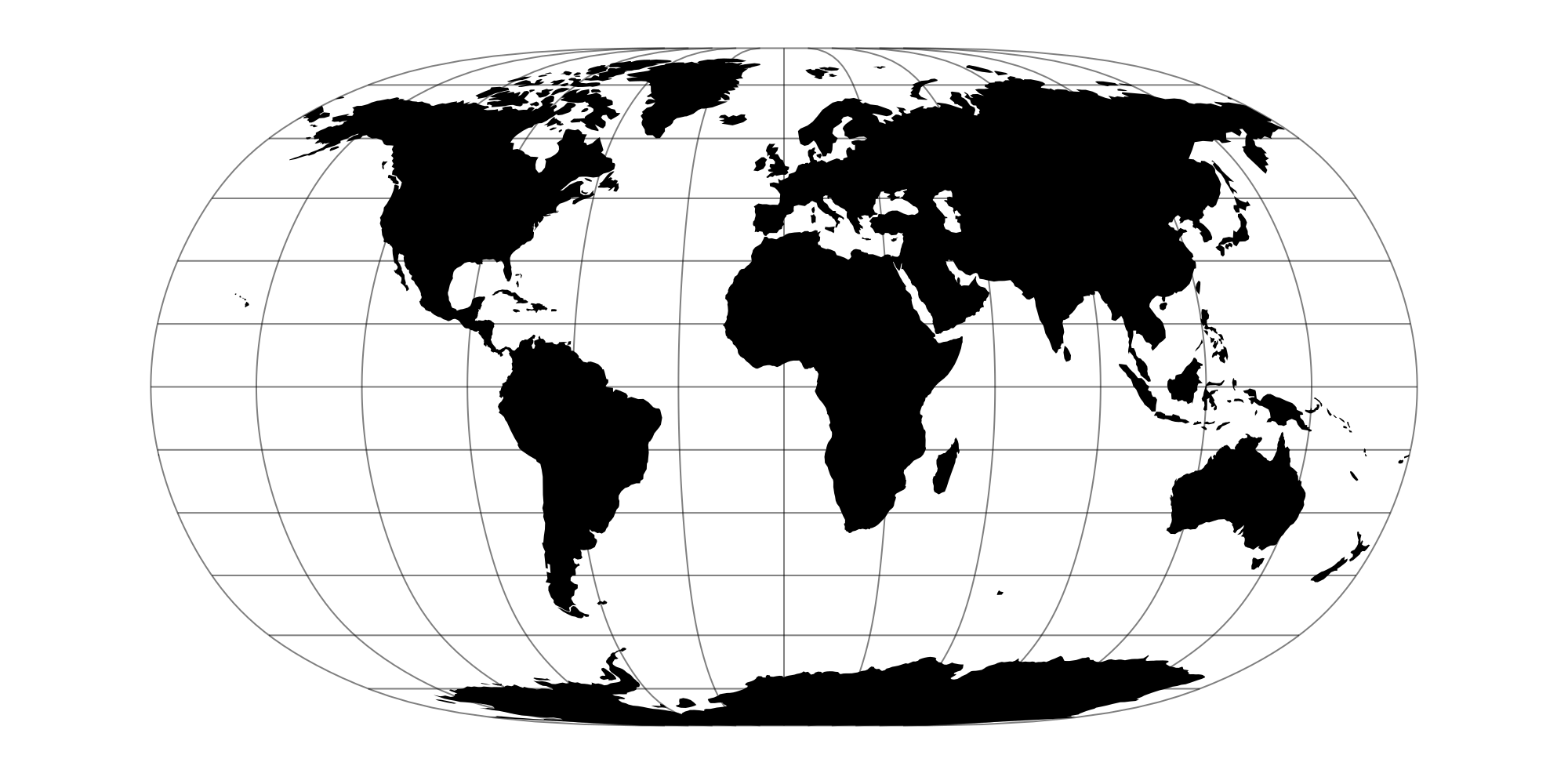
Now let's plot a Polygon like before, but this time with a CRS that differs from our source data.
function ring(radius)
    ϴ = 0:0.01:2π
	points = @. GI.Point(50 + radius * cos(ϴ), 50 + radius * sin(ϴ))
	return GI.LinearRing(points)
end

function spiro(a = 22, b = 2, k = 11)
    ϴ = 0:0.01:2π
    points = @. GI.Point(
        50 + a*cos(ϴ) - b*cos(k*ϴ),
        50 + a*sin(ϴ) - b*sin(k*ϴ)
    )
    return GI.LinearRing(points)
end


multipolygon = GI.MultiPolygon([
    GI.Polygon([spiro(), ring(8)]),
    GI.Polygon([ring(4)])
])

plot!(multipolygon; color = :green)
fig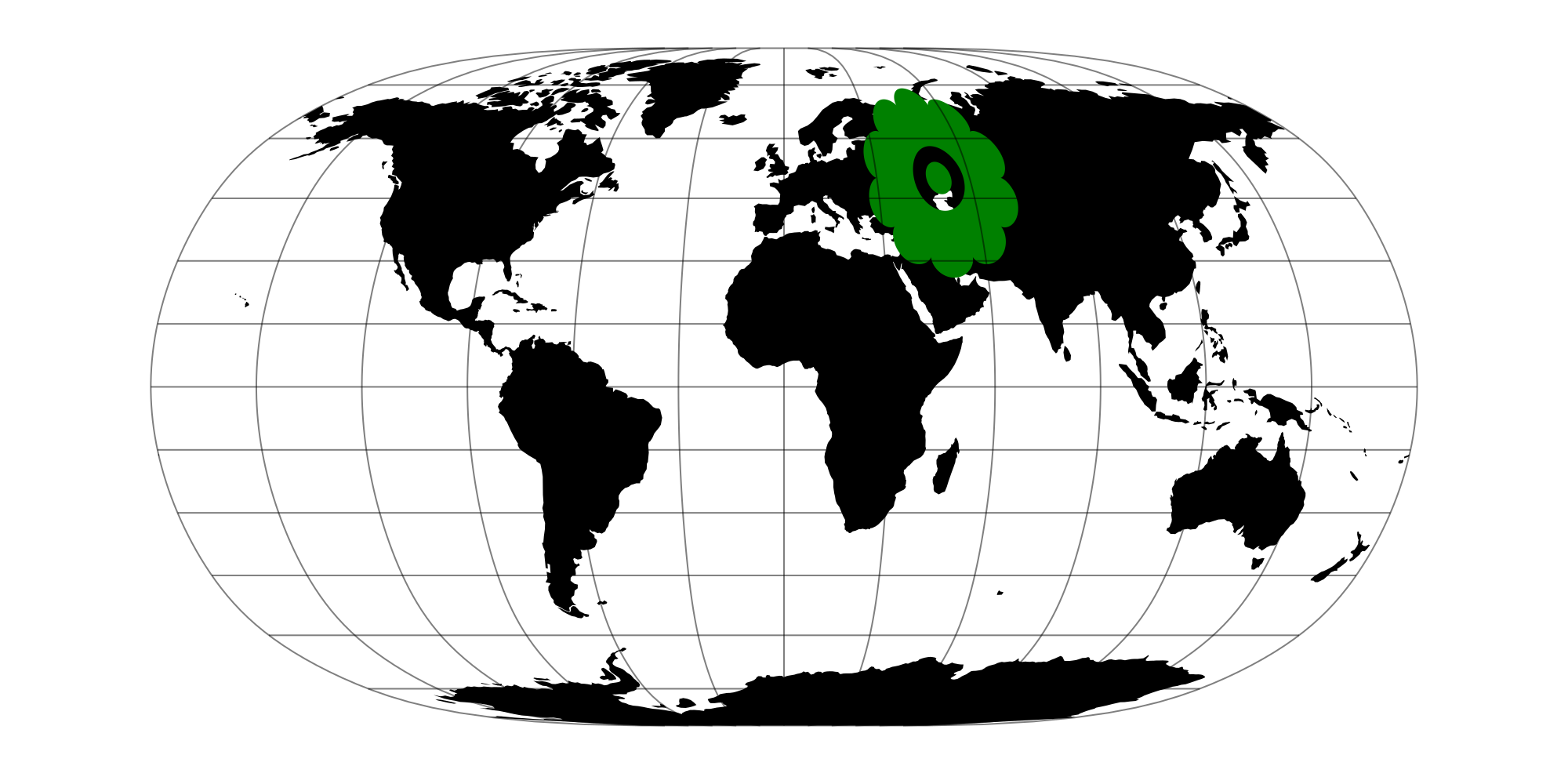
But what if we want to plot geometries with a different source CRS on the same figure?
To show how to do this let's create a geometry with coordinates in UTM (Universal Transverse Mercator) zone 10N EPSG:32610.
source_crs2 = GFT.EPSG(32610)EPSG:32610Create a polygon (we're working in meters now, not latitude and longitude)
rs = 1000000;
ϴs = 0:0.01:2pi;
xs = rs .* cos.(ϴs).^3 .+ 500000;
ys = rs .* sin.(ϴs) .^ 3 .+ 5000000;
629-element Vector{Float64}:
5.0e6
5.0e6
5.00001e6
⋮
5.0e6
5.0e6Now create a LinearRing from Points
ring3 = GI.LinearRing(GI.Point.(xs, ys))GeoInterface.Wrappers.LinearRing{false, false}([Point((1.5e6, 5.0e6)), … (627) … , Point((1.499984780817334e6, 4.999999967681458e6))])Now create a Polygon from the LineRing
polygon3 = GI.Polygon([ring3])GeoInterface.Wrappers.Polygon{false, false}([GeoInterface.Wrappers.LinearRing([Point((1.5e6, 5.0e6)), … (627) … , Point((1.499984780817334e6, 4.999999967681458e6))])])Now plot on the existing GeoAxis.
Note
The keyword argument source is used to specify the source CRS of that particular plot, when plotting on an existing GeoAxis.
plot!(ga,polygon3; color=:red, source = source_crs2)
fig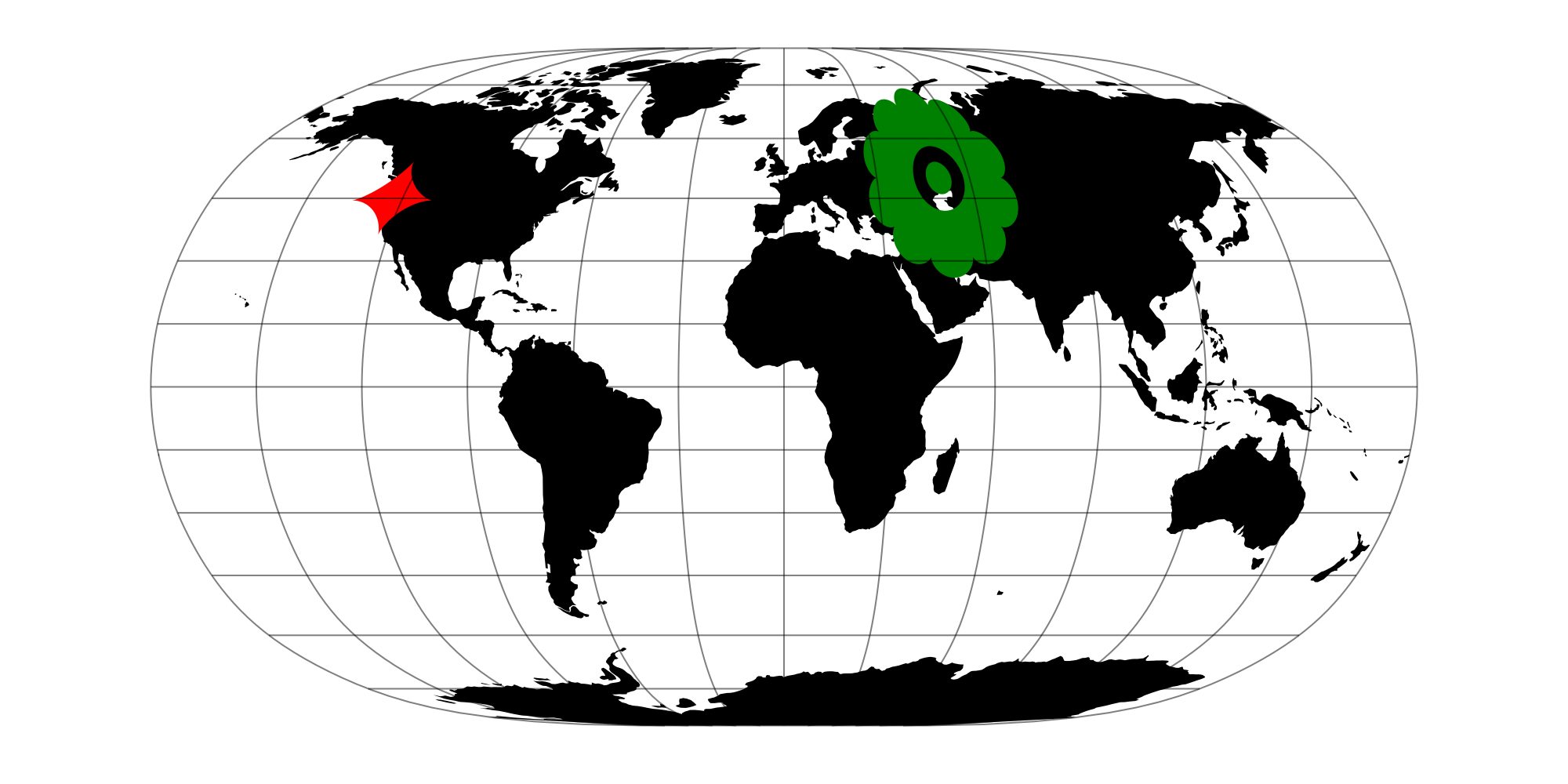
Create geospatial geometries with embedded coordinate reference system information
Great, we can make geometries and plot them on a map... now let's export the data to common geospatial data formats. To do this we now need to create geometries with embedded CRS information, making it a geospatial geometry. All that's needed is to include ; crs = crs as a keyword argument when constructing the geometry.
Let's do this for a new Polygon
rs = 3;
ks = 7;
ϴs = 0:0.01:2pi;
xs = rs .* (ks + 1) .* cos.(ϴs) .- rs .* cos.((ks + 1) .* ϴs);
ys = rs .* (ks + 1) .* sin.(ϴs) .- rs .* sin.((ks + 1) .* ϴs);
ring4 = GI.LinearRing(tuple.(xs, ys))
GeoInterface.Wrappers.LinearRing{false, false}([(21.0, 0.0), … (627) … , (21.00085222666982, -8.14404531208901e-6)])But this time when we create the Polygon we need to specify the CRS at the time of creation, associating that metadata with the geometry.
geopoly1 = GI.Polygon([ring4], crs = source_crs1)GeoInterface.Wrappers.Polygon{false, false}([GeoInterface.Wrappers.LinearRing([(21.0, 0.0), … (627) … , (21.00085222666982, -8.14404531208901e-6)])], crs = "EPSG:4326")Note
It is good practice to only include CRS information with the highest-level geometry. Not doing so can sometimes bloat the memory footprint of the geometry. CRS information can be included at the individual Point level but is discouraged.
And let's create a second Polygon by shifting the first using CoordinateTransformations
xoffset = 20.
yoffset = -25.
f = CoordinateTransformations.Translation(xoffset, yoffset)
geopoly2 = GO.transform(f, geopoly1)
GeoInterface.Wrappers.Polygon{false, false}([GeoInterface.Wrappers.LinearRing([[41.0, -25.0], … (627) … , [41.00085222666982, -25.000008144045314]], crs = "EPSG:4326")], crs = "EPSG:4326")Creating a table with attributes and geometry
Typically, you'll also want to include attributes with your geometries. Attributes are simply data that are attributed to each geometry. The easiest way to do this is to create a table with a :geometry column. Let's do this using DataFrames.
df = DataFrame(geometry = [geopoly1, geopoly2])| Row | geometry |
|---|---|
| Polygon… | |
| 1 | GeoInterface.Wrappers.Polygon([GeoInterface.Wrappers.LinearRing([(21.0,0.0),…(627)…,(21.00085222666982,-8.14404531208901e-6)])]) |
| 2 | GeoInterface.Wrappers.Polygon([GeoInterface.Wrappers.LinearRing([[41.0,-25.0],…(627)…,[41.00085222666982,-25.000008144045314]])]) |
Now let's add a couple of attributes to the geometries by adding new columns to our existing data frame.
df.id = ["a", "b"]
df.name = ["polygon 1", "polygon 2"]
df| Row | geometry | id | name |
|---|---|---|---|
| Polygon… | String | String | |
| 1 | GeoInterface.Wrappers.Polygon([GeoInterface.Wrappers.LinearRing([(21.0,0.0),…(627)…,(21.00085222666982,-8.14404531208901e-6)])]) | a | polygon 1 |
| 2 | GeoInterface.Wrappers.Polygon([GeoInterface.Wrappers.LinearRing([[41.0,-25.0],…(627)…,[41.00085222666982,-25.000008144045314]])]) | b | polygon 2 |
Saving your geospatial data
There are Julia packages for most commonly used geographic data formats. Below, we show how to export that data to each of these.
In general, GeoDataFrames is recomended as the default way to write data to your desired format. This package uses the GDAL library under the hood which supports writing to nearly all geospatial formats.
Writing to gpkg:
GeoDataFrames.write("shapes.gpkg", df)"shapes.gpkg"Writing to GeoJSON:
GeoDataFrames.write("file.geojson", df)"file.geojson"View the GeoDataFrames documentation for all recognized file extensions.
Geodesic paths
Geodesic paths are paths computed on an ellipsoid, as opposed to a plane. The geodesic is the shortest path between two points measured along the Earth's curved surface. Because the surface is curved, that shortest path appears as a curve (not a straight line) when drawn on a flat map.
Here, we use the segmentize function to add vertices along the geodesic between two points, so the line follows Earth's curved surface instead of a straight line.
# Two points in (longitude, latitude) order: Houston (IAH) and Amsterdam (AMS).
# Geodesic methods assume lon/lat input.
IAH = (-95.358421, 29.749907)
AMS = (4.897070, 52.377956)

# Draw coastlines for geographic context
fig, ga, _cp = lines(GeoMakie.coastlines(); axis = (; type = GeoAxis))

# Create our line along the Earth, accounting for curvature
lines!(ga, GO.segmentize(GO.Geodesic(), GI.LineString([IAH, AMS]); max_distance = 100_000))
fig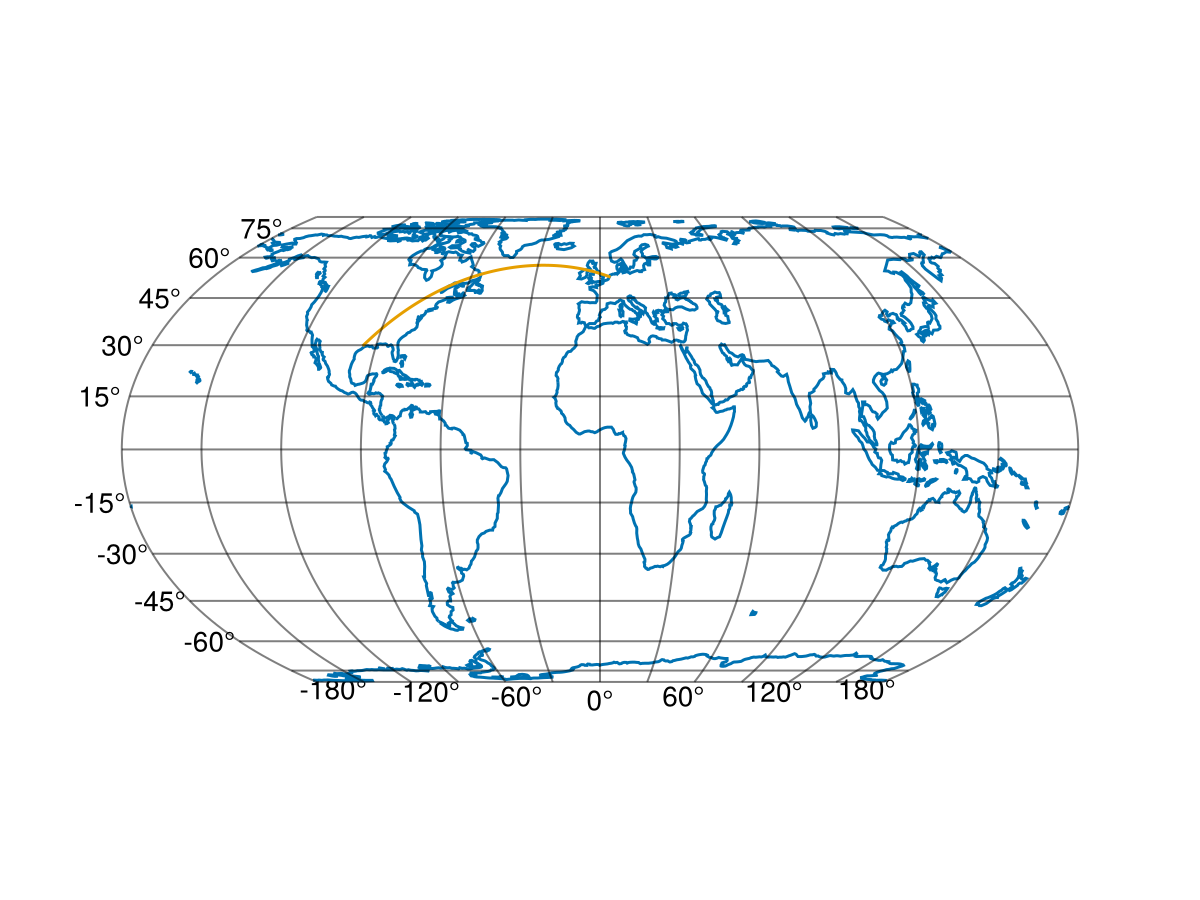
And there we go, you can now create mapped geometries from scratch, manipulate them, plot them on a map, and save them in multiple geospatial data formats, as well as create geodesic paths.